
Fog Of War
Darkens everything a team has not seen and clears it where the team's Vision Sources see. It can remember explored areas, or show only what is visible right now. Add it to an empty object; use one per team.
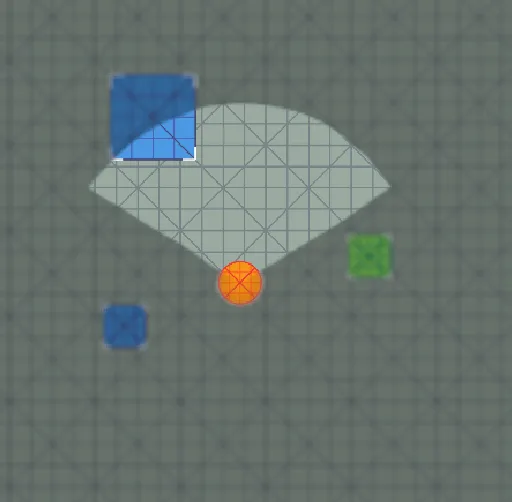
The fog is drawn by the Renderer Feature. Without it, a simple overlay is used, which supports the Color and Texture styles in 2D and the Flat display in 3D.
Settings
Mode and display
The tabs at the top: 2D, 3D or 2D Isometric, the same as on the sources. See Modes.
In 3D a second row of tabs chooses how the fog meets the scene:
| Display | Description |
|---|---|
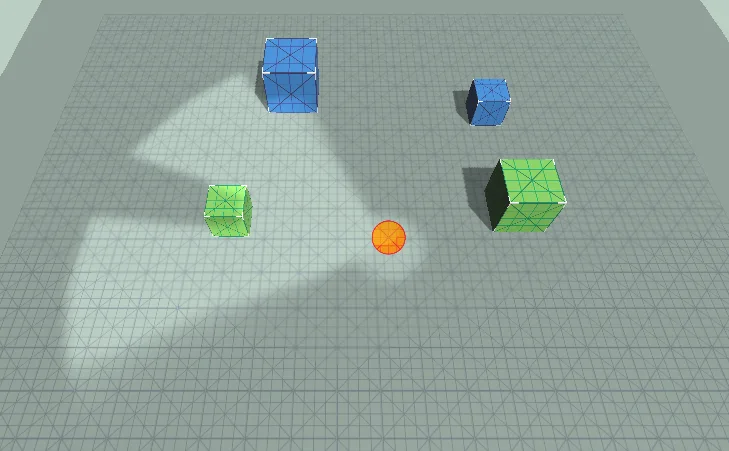
| Flat | A horizontal fog layer at this object's height. Place the object just above the floor |
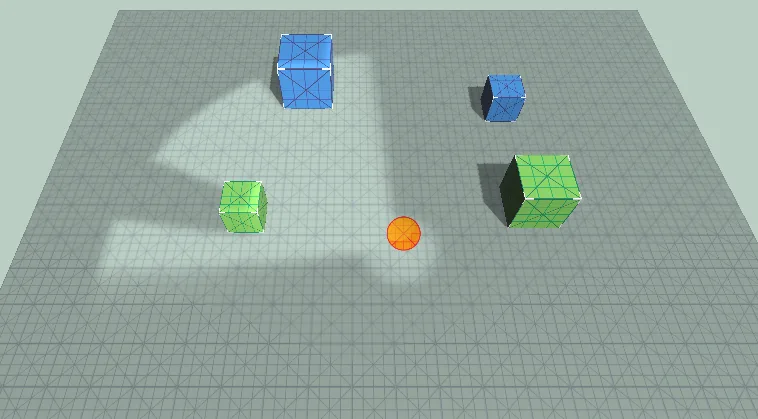
| On geometry | The fog covers walls, props and the floor at any height and from any camera angle. Needs the renderer feature |
Flat:
 On geometry:
Area
| Setting | Default | Description |
|---|---|---|
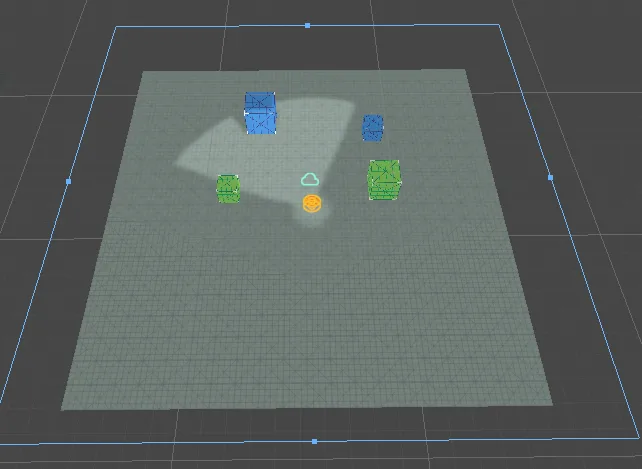
| Size (X, Y) or Size (X, Z) | 100 × 100 | Size of the area covered by the fog. It is centered on this object: move the object to move the fog |
| Edit Area | Drag the edges of the fog rectangle in the Scene view, like Edit Collider on a Box Collider | |
| Resolution | 4 | Fog texture pixels per world unit. Higher = sharper edges, more memory |
| Fit Area To Scene | Covers all renderers and colliders in the scene, plus a margin |
Under Resolution the Inspector shows the resulting texture size. A fog texture can be at most 4096 pixels per side. If the area is so large that the resolution cannot be reached, the Inspector warns you. Fit the area to the level to get sharper edges.
Gameplay
| Setting | Default | Description |
|---|---|---|
| Team | 0 | Vision Sources of this team reveal the fog |
| Memory | Remember explored | Remember explored: areas seen once stay explored, for strategy games and roguelikes. Visible only (MOBA): only what is visible right now is clear, everything else uses the Explored color |
| Reveal Walls | Seen side | How much of a seen obstacle is revealed, see below |
| Depth | 0.5 | Only with Reveal Walls set to Depth: how far into obstacles the fog opens, in world units |
Reveal Walls
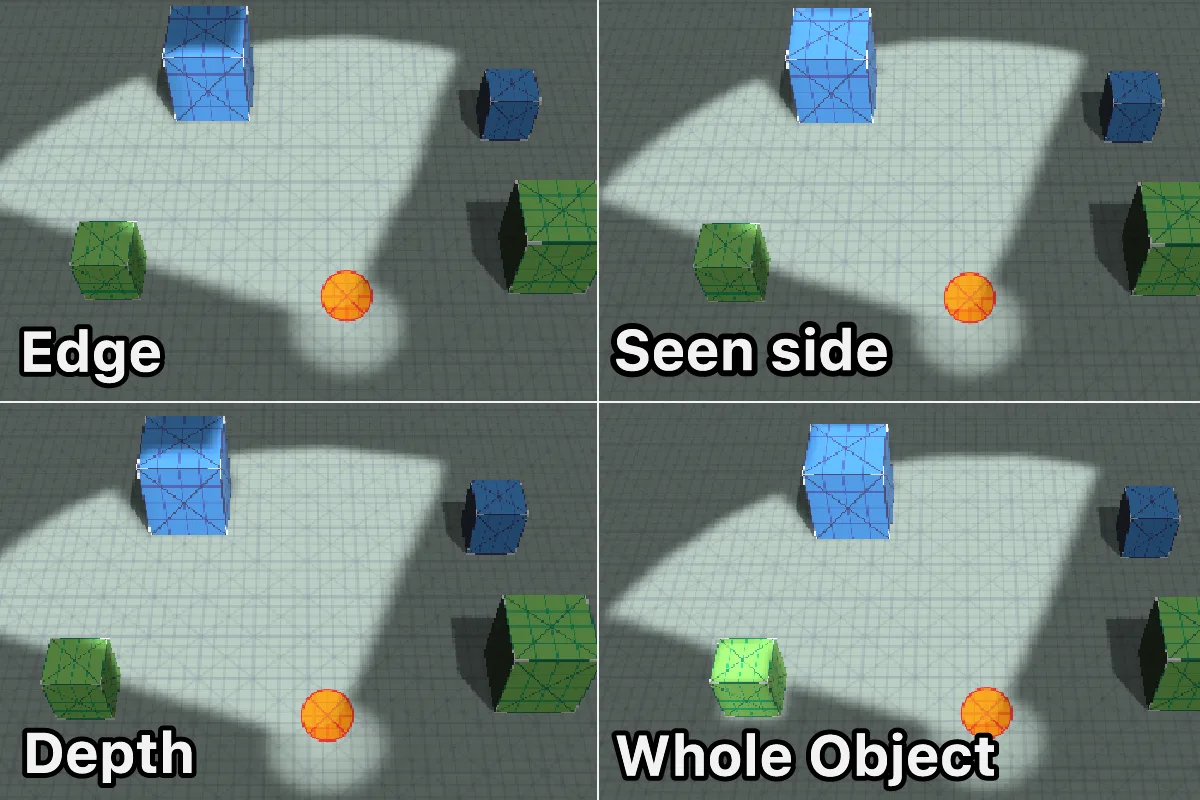
When a source sees a wall, its visible area ends at the wall's face. If the fog opened only up to that line, the wall itself would stay dark. Reveal Walls decides how much of the obstacle is shown:
| Mode | Description |
|---|---|
| Edge | Only a thin strip along the seen face. The obstacle itself stays in fog |
| Seen side | The obstacle is revealed through its thickness, but only where the rays hit it |
| Whole object | Any obstacle the source sees is revealed entirely. Tilemaps, composite colliders, edge colliders and terrain fall back to Seen side, because they are not single objects |
| Depth | Opens a fixed distance into obstacles, set by Depth, never past their far side |
Reveal Walls changes only the fog picture. AI and Fog Hiders always use the exact visible area.
Look
| Setting | Default | Description |
|---|---|---|
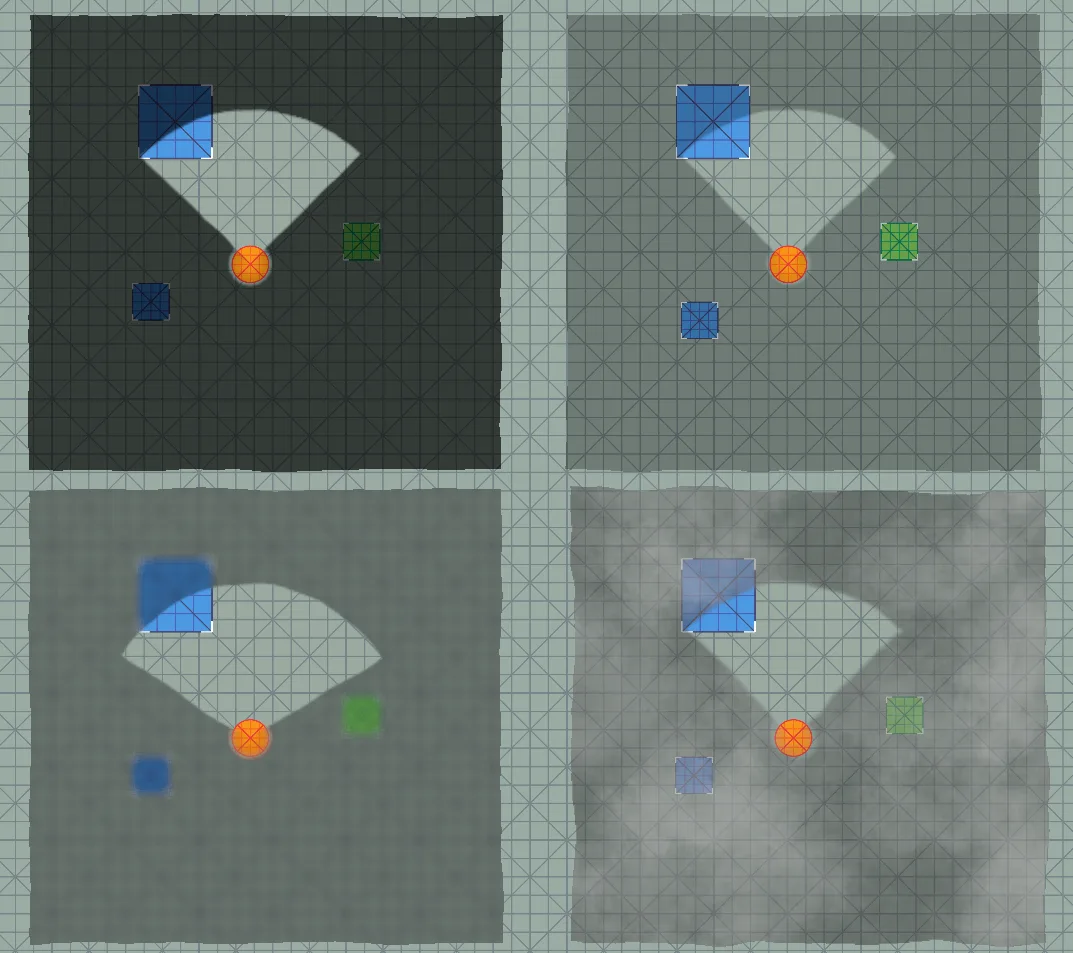
| Style | Color | What fills the fog: Color, Texture or Blur |
| Unexplored | Black | Color of areas never seen. Alpha = how much it covers |
| Explored | Black, 60 % | Color of areas seen before but not visible now. Alpha = how much it covers |
| Edge Softness | 1.5 | Blur of the fog edge, in texture pixels |
| Edge Wobble | 0.25 | How much the fog edge moves, in world units. 0 = exact edge |
| Fade Speed | 8 | How fast the fog opens and closes. 0 = instantly |
Color style
| Setting | Default | Description |
|---|---|---|
| Procedural Clouds | Off | Drifting clouds generated in the shader, without a texture. Off = plain color |
| Cloud Strength | 0.5 | How strongly the clouds show |
| Cloud Color | Dark blue-gray | Color of the clouds |
| Cloud Scale | 0.25 | Size of the cloud pattern. Smaller values make larger clouds |
| Cloud Drift | 0.05, 0.02 | Direction and speed of the drift, in world units per second |
Texture style
| Setting | Default | Description |
|---|---|---|
| Texture | None | Any texture, ideally seamless: clouds, smoke, noise. Two layers of it drift over each other |
| Tint | Blue-gray, 80 % | Multiplies the texture. Alpha = how strongly it shows over the fog colors |
| Tile Size | 8 | Size of one texture tile in world units |
| Drift | 0.3, 0.1 | Speed and direction of the first layer, in world units per second. The second layer drifts the other way |
The texture's Wrap Mode must be Repeat, which is the import default. The demo includes two fog textures in Demo/Textures.
Blur style
Needs the renderer feature. The scene stays visible under the fog, blurred. The alpha of the Unexplored and Explored colors sets how dark it is.
| Setting | Default | Description |
|---|---|---|
| Blur Radius | 0.012 | How blurred the scene under the fog is, as a share of the screen height |
Editor
| Setting | Default | Description |
|---|---|---|
| Preview In Edit Mode | Off | Show the fog while editing. Usually off, so it does not hide the level |
| Sorting Layer, Order in Layer | Default, 1000 | 2D and isometric, for the fallback overlay: keep it above everything the fog should cover |
Runtime
In Play mode: Reset Explored forgets all explored areas, Reveal All marks the whole area as explored.
Scripting
Namespace Renvix.VisionFog.Presentation.
| Member | Description |
|---|---|
Texture VisibleTexture | What the team sees now, smoothed. Red channel, 1 = visible |
Texture ExploredTexture | Areas ever seen. Red channel, 1 = explored |
Rect Area | The covered rectangle in plane coordinates (2D: X, Y; 3D: X, Z). Setting it moves the object |
Vector2 Size | Size of the area; the area stays centered on the object |
int Team | The team that reveals this fog |
VisionPlane Plane | The mode |
WallReveal WallRevealMode, float WallRevealDepth | Reveal Walls settings |
Style FogStyle | The style |
void ResetExplored() | Forgets all explored areas, e.g. when a new level starts |
void RevealAll() | Marks the whole area as explored, e.g. after picking up a map |
bool DrawnByRendererFeature | True while the renderer feature draws this fog |
static IReadOnlyList<FogOfWar> Active | All enabled fogs |
The two textures cover the fog's Area: texture coordinate (0, 0) is the corner at Area.min, (1, 1) the corner at Area.max. They can be recreated when the size, resolution or quality level changes, so read the properties again instead of keeping the reference. A complete example is in the Minimap guide.