
Installation
Requirements
| Unity | 6 (6000.0) or newer |
| Render pipeline | Universal Render Pipeline, 2D Renderer or Universal Renderer |
| Packages | Burst, Collections, Mathematics |
Import the package
- Open Window > Package Manager, select My Assets and find Vision Fog.
- Click Download, then Import.
- In the import window keep everything selected. The
Demofolder is optional: leave it out if you do not need the examples.
The package is imported into Assets/VisionFog.
| Folder | Contents |
|---|---|
Runtime | The components, shaders and the renderer feature |
Editor | Inspectors, the fog area tool and setup checks |
Demo | Demo scenes, scripts, sprites and sounds |
Tests | Edit mode tests |
Vision Fog needs the Burst, Collections and Mathematics packages. If one of them is missing, install it from Window > Package Manager > Unity Registry.
Add the renderer feature
The fog is drawn by the Vision Fog Renderer Feature. Add it to the renderer your camera uses:
- Find the renderer asset in your project. In the Universal 2D template it is the 2D Renderer in
Assets/Settings; in the 3D template there is one per quality level, such asPC_RendererandMobile_Renderer. - Select it and click Add Renderer Feature > Vision Fog Renderer Feature at the bottom of the Inspector.
- If your project uses several renderers (one per quality level, or different ones for different cameras), add the feature to each of them.
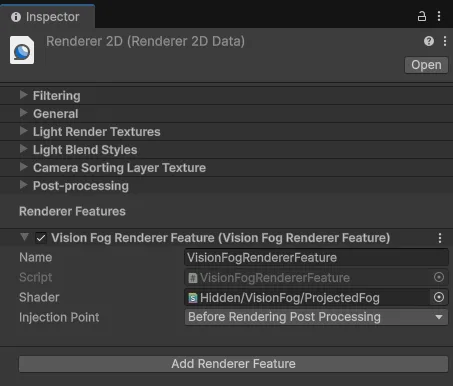
Without the feature, Fog Of War falls back to a simple overlay. Some features need the renderer feature:
| With renderer feature | Fallback overlay | |
|---|---|---|
| Color style | Yes | Yes |
| Texture style | Yes | Yes |
| Blur style | Yes | No |
| 3D: fog on geometry | Yes | No |
In Play mode, a Fog Of War that is drawn with the fallback shows a message in its Inspector.
The feature draws the fog before post-processing, so bloom and color grading apply on top of it. UI on a canvas in Screen Space - Overlay mode stays above the fog. UI on a Screen Space - Camera or World Space canvas is part of the rendered scene and gets covered by the fog.
Check the installation
Open a demo scene from Assets/VisionFog/Demo and press Play. You should see the fog, and the vision cones should stop at walls. If something is not set up right, the Vision Fog inspectors show a message, and most messages are generally clear.