
3D Fog on Geometry
In 3D a Fog Of War can be shown in two ways:
| Display | Looks like | Needs |
|---|---|---|
| Flat | A layer of fog at one height, like a carpet. Tall objects stick out of it | Nothing extra |
| On geometry | The fog covers floors, walls and props at any height, from any camera angle | The renderer feature |
Flat works well for a camera looking straight down, or when the fog should look like a mist on the ground. On geometry is right for perspective and angled cameras, where flat fog would leave walls and props uncovered.
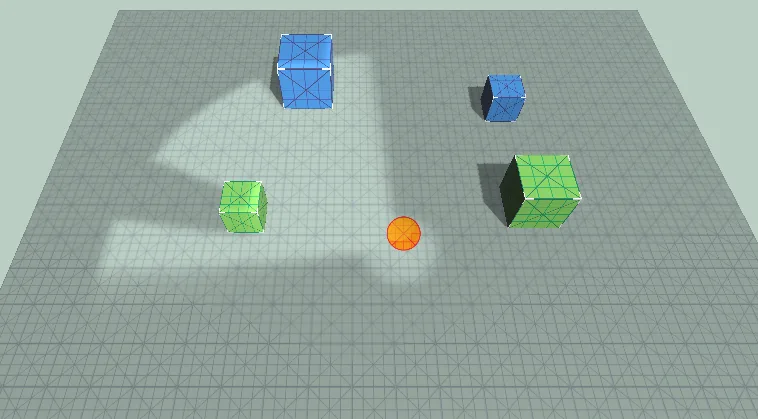
Setup
- Add the renderer feature to every renderer your cameras use.
- On the Fog Of War, select the 3D tab, then On geometry.
- Set Size to cover the whole level. Everything outside the area is treated as unexplored and stays covered.
- Choose Reveal Walls. With Seen side (default) a wall is revealed through its thickness where the player's view hits it, so its top and its face are clear. Whole object reveals each seen obstacle entirely, which looks clean for separate props and buildings.
The camera depth texture is requested by the feature automatically.
Textures on walls
With the Texture style, the texture is projected from three directions and blended by the surface direction: floors get it from above, walls from the side. It does not stretch on vertical surfaces. Tile Size is the same in all three directions.
How it works, and what follows from it
The fog is a picture of the ground plane. For every pixel on screen, the feature finds the 3D point under it from the depth buffer and looks up the fog at that point's X and Z. The height of the point is not used. This gives the following behavior:
- The whole height of a wall shares one fog value. If the bottom of a wall is revealed, its top is revealed too.
- Multi-floor levels share one fog. A room on the second floor is revealed together with the room under it. Use a separate Fog Of War per floor and enable the one the player is on, or keep floors in separate scenes.
- The sky is never covered. Pixels without geometry are skipped.
- Transparent objects such as glass, water or particles do not write depth, so the fog is applied to whatever is behind them. Their own color is not covered by the fog. Hide transparent objects that must not show through the fog with a Fog Hider, or make them opaque.
Characters and props that move in the fog are covered like everything else. Use a Fog Hider anyway when they must not be seen at all, because a dimmed Explored color still shows their silhouette.